

You verify a Google Business Profile by signing in to the Google Account that manages it, finding or adding your listing, and completing whichever verification method Google offers — video, postcard, phone, SMS, email or a live video call. Google picks the method automatically based on your business type and location. Most reviews clear within a few business days, and video verification (recorded live on your phone, at least 30 seconds) has become the most common route for trades and small operators.
TL;DR:
- Verification methods depend on your business type, region, and existing information, with postcard and video being most common for storefronts and service providers.
- Video verification requires a single, unedited live recording of at least 30 seconds showing your signage, workspace, and proof of management, with no editing or stitching.
- If a listing is already verified by someone else, request ownership and provide proof such as business licenses or invoices to claim it within three days.
- Most verification rejections stem from mismatched signage, insufficient proof, expired postcards, or mid-process edits, which can usually be fixed without starting over.
- Proper verification unlocks features like bookings, messaging, and insights, making it essential for safeguarding your listing and attracting customers.
Table of Contents
- Which verification methods you might see and when each is used
- Step-by-step: verify your profile
- How to plan, record and submit a successful verification video
- If someone else has already verified your business
- Common reasons verification fails and what to do next
- What to do once you're verified
- Why fast, correct verification matters for trades
- How JManage handles Google Business Profile setup for you
- Sources
- FAQ
Which verification methods you might see and when each is used
Google decides which options appear on your account, and you can't request a different one just because it's faster. The choice depends on your business category, how much public information already exists about you (think old directory listings, past reviews, existing web mentions) and sometimes your region.
The common methods are:
- Video verification — record live through your Business Profile showing proof you exist, manage the business and operate at that location.
- Postcard by mail — Google posts a code to your business address; you enter it to confirm.
- Phone or SMS — a code arrives instantly if your business qualifies.
- Email — sent to an address already linked to your listing.
- Live video call — a Google representative verifies details with you in real time.
- Instant verification — available occasionally if you've already verified the same business through Google Search Console.
Storefronts with clear signage often get offered video or postcard. Service-area businesses (plumbers, electricians, mobile mechanics) without a public-facing shopfront are more likely to see video or a live call, since there's no physical location to photograph a sign for. Google chooses the available methods based on business type, region and existing public information, so don't be surprised if two similar trades businesses get offered different options.
Step-by-step: verify your profile
- Sign in to the right Google Account. Use the account that should actually manage the business long term, not a personal account you'll lose access to later.
- Find or add your listing. Search for it on business.google.com or Google Maps. If it already exists under someone else's account, you'll need to request access rather than create a duplicate.
- Select "Get verified." Google will show the specific flow available to you.
- Follow that flow exactly. Request a postcard and enter the code, accept a phone/SMS/email code, or start a video or live call and prepare your evidence first.
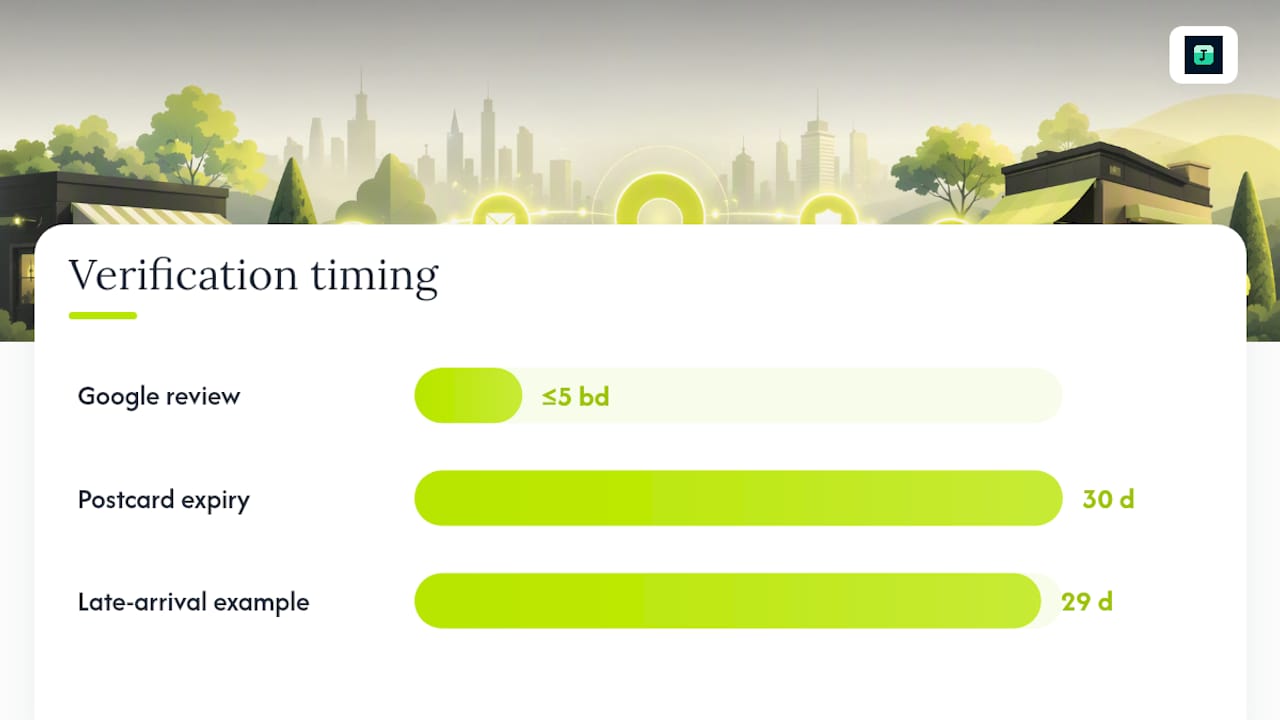
- Wait for review. Review typically takes up to five business days once you've submitted everything.
Pro Tip: If you've requested a postcard, don't touch your business name or address in the meantime. Editing those details can invalidate the code, and postcard codes expire after 30 days anyway, so there's no upside to fiddling with the listing while you wait.
One thing trips up more owners than it should: assuming the postcard is guaranteed. Australia Post delays happen, and a code that arrives on day 29 leaves you almost no room to enter it before it dies.
How to plan, record and submit a successful verification video
Treat the video like a single, unedited take, because that's exactly what Google requires. You can't stitch clips together or trim out mistakes. Plan a walking sequence before you press record:
- Start outside showing your signage and street number or a recognisable landmark.
- Walk inside and pan across the workspace, tools, vehicle signage or stock, whatever proves this is a working business.
- Show something that proves you manage the place, such as unlocking a door, accessing a back office, or handling equipment only staff would touch.
- Avoid capturing customer faces, payment details, or anything personal that doesn't need to be there.
Video verification must be recorded live on a mobile device through your Business Profile, run for at least 30 seconds, and show proof of existence, management and location without editing. Once uploaded, Google reviews it and either confirms the listing or returns a "Review issues" note explaining what was missing so you can re-record without starting from scratch.
Pro Tip: Run through the sequence twice before hitting record. Preparing your evidence and access in advance matters because you can't pause halfway through to find a key or a folder of paperwork.
If someone else has already verified your business
This happens more often than most owners expect, especially when a listing was set up years ago by a previous manager, a marketing contractor, or an ex-employee who's since moved on.
- Search for your business on Google Maps or business.google.com and select the option to request access or ownership.
- The current owner has three days to respond to your request; if they don't, you may be able to claim the profile yourself and proceed through the normal verification steps.
- Keep proof of ownership handy, ABN details, a business licence, or a recent invoice, since Google may ask for it during the claim.
- If duplicate listings exist for the same address, report or merge them; running two profiles for one business splits your reviews and confuses your ranking.
Don't skip this step and just create a second listing. Duplicate profiles almost always cause more damage to your visibility than the wait for a response ever will.
Common reasons verification fails and what to do next
Most rejections come down to a handful of repeat offenders, and nearly all of them are fixable without starting the whole process again.
- Signage doesn't match your listing name. If your Business Profile says "Smith Electrical" but your van says "Smith Electrical Services," fix one to match the other before re-recording.
- Insufficient proof of management. A video that only shows the outside of a building doesn't prove you run the place. Show something only an owner or manager could access.
- Expired postcard code. Once past 30 days, request a new one rather than trying the old code again.
- Details changed mid-verification. Editing your address or name while a postcard or video is pending can void the whole attempt.
Pro Tip: Read the "Review issues" message carefully before resubmitting. Google specifies exactly what was missing when a video is rejected, so re-recording blind usually repeats the same mistake.
If you've failed the same method twice, it's often faster to switch methods entirely (from video to a live call, for instance) than to keep re-attempting a format that isn't working for your setup. If nothing progresses after several tries, contact Google Business Profile support directly, or hand it to someone who verifies profiles routinely.
What to do once you're verified
Verification isn't the finish line, it's what unlocks the features that actually bring in work.
- Double-check your hours, service area, phone number and categories are accurate.
- Add real photos of jobs, your team and your vehicle or premises.
- Turn on bookings or messaging if your trade suits either.
- Reply to reviews promptly; a verified profile lets you manage how your business appears on Search and Maps, add photos, and enable customer messaging.
- Keep your verification proof and admin login details somewhere safe. Major edits later (a new address, a name change) can trigger re-verification.
Why fast, correct verification matters for trades
Verification stops anyone else from hijacking your listing, editing your hours, or redirecting your customers elsewhere. It also unlocks bookings, posts and performance insights that unverified profiles simply can't touch. In our experience helping tradespeople set up their online presence, the businesses that prepare signage and settle on one admin account before starting almost always verify on the first attempt.
— John
How JManage handles Google Business Profile setup for you
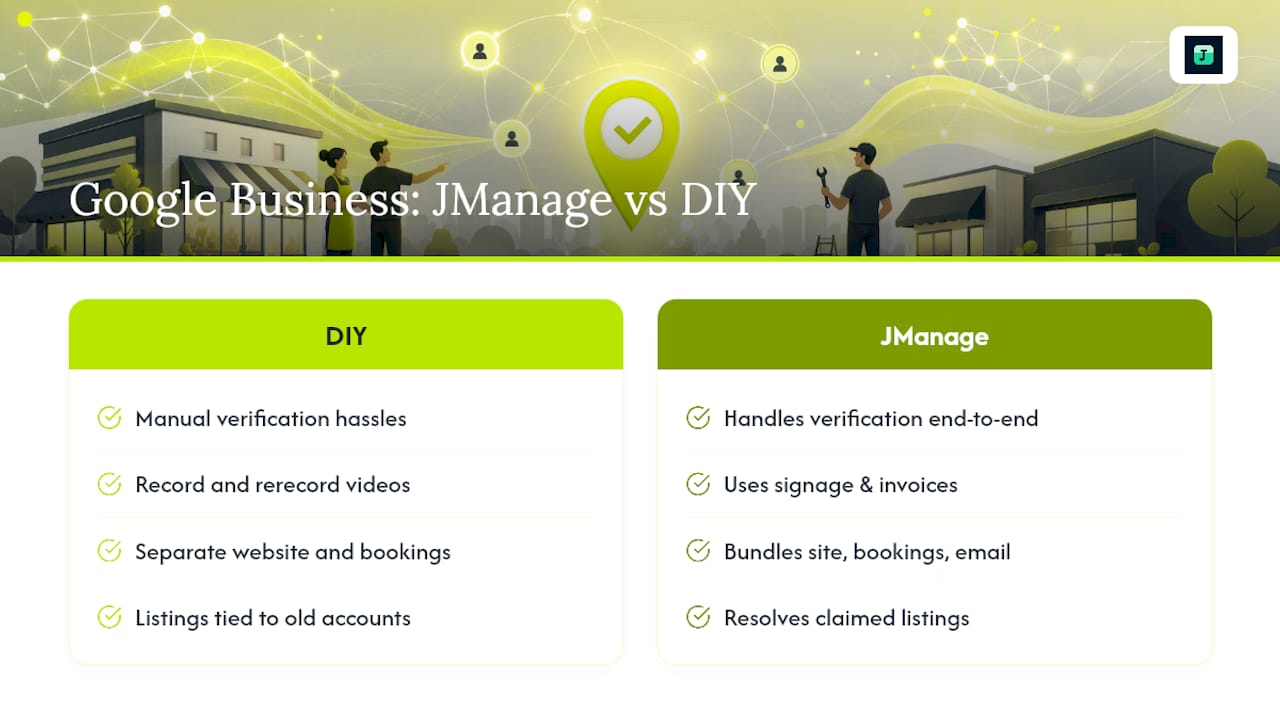
If chasing postcards, re-recording rejected videos or untangling a listing someone else claimed years ago sounds like more admin than you signed up for, that's exactly the gap JManage exists to close. JManage sets up and manages your Google Business Profile alongside your website, bookings and branded email, using your existing signage, invoices and business details to get it right the first time. That matters most for tradies juggling jobs all day who can't stop mid call-out to film a 30 second walkthrough, or who've inherited a listing an old employee or contractor set up under their own account. Rather than sort verification, then a website, then bookings separately, Jmanage bundles the lot into one ongoing subscription with edits and renewals handled for you. If you'd rather hand this off than fight with a rejected video for the third time, check out Jmanage's plans and get your profile verified and working properly.
FAQ
How do I verify my business on Google?
Sign in to the account that manages your listing, find or add your Business Profile, select "Get verified" and complete whichever method Google offers, usually video, postcard, phone, SMS or a live call.
Why can't I verify my Google Business Profile?
Common causes include an ineligible business category (such as an online-only store with no in-person service), a video that doesn't clearly show proof of existence and management, or an expired postcard code. Check the specific "Review issues" message Google shows for the exact reason.
Why is Google asking me to verify my business?
Verification confirms you're the legitimate owner or manager before Google lets you control how the listing appears on Search and Maps, which protects both your business and searchers from fake or hijacked profiles.
Is there another way to verify my business on Google besides video?
Yes. Depending on your business type and region, Google may offer postcard, phone, SMS, email or a live video call instead of video verification, and the option shown to you is selected automatically.
How long does Google Business Profile verification take?
Most reviews complete within five business days of submitting your chosen verification method, though postcard delivery itself can add extra time before you even reach that stage.
What happens if someone else already owns my business listing?
Request ownership through the Business Profile flow. The current owner has three days to respond, and if they don't, you may be able to claim the profile and verify it yourself.